 CourseDraw
 Show class info
Place name, date, judgement, tempo, and the ride path fields on the course plan.
To easily change details such as judgement, date, number of obstacles, time allowed, and so on, you can place placeholders that show that information. A placeholder marks where the information will appear, and you then set what it should say under the Class tab. Which obstacles are included, the number of efforts, the length, and the times allowed are also calculated automatically by Ride path, so you do not have to update them by hand.
Set the values
Open Class in the toolbar. Fill in what should appear on the course plan, for example:
- Title — the class name
- Date — and the date format to show
- Judgement — pick from the list, or free text
- Tempo — metres per minute
Height and Start time work the same way when you need them.
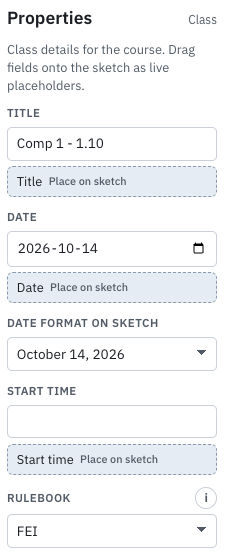
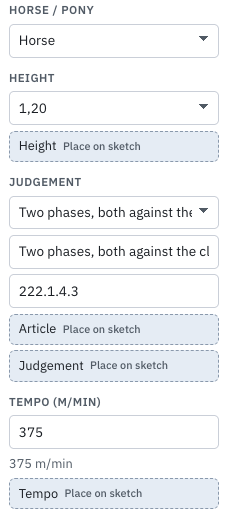
Place name, date, judgement, and tempo
Under each field there is a button labelled Place on course plan.
- Drag the button to where the text should sit on the canvas.
- Or click the button, then click the course plan.
Do this for Title, Date, Judgement, and Tempo. Move a placed label by selecting it again. Remove it with Delete or Backspace.
With a placeholder selected you can choose Show field name, and whether the layout is Name: value or Spread (name left, value right).
Drag out the ride path properties
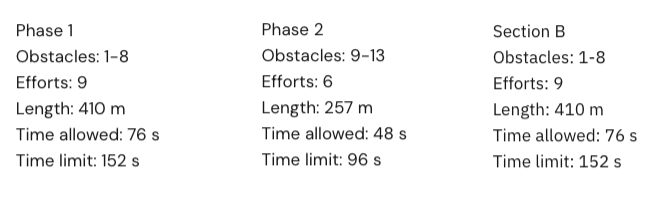
Once the ride path is drawn it appears under Ride path in the same panel. Length, Obstacles, Efforts, Time allowed, and Time limit can stay calculated or be adjusted manually. See Measure the ride path.
The simplest way is to drag out All fields, which includes all of the above. Drag it onto the course plan, or click and then click the canvas.
Each field also has its own Place on course plan button if you only want time allowed, for example.
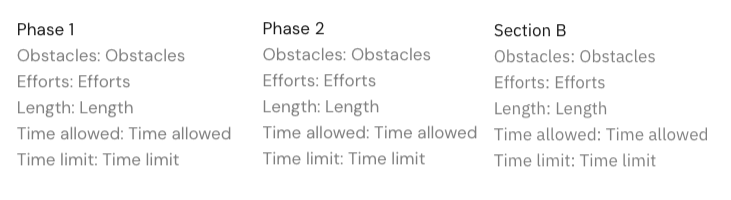
When values are set it looks like this:
Before the ride path is drawn
Under Prepared placeholders you can drag out fields for Ride path 1, 2, or 3 before the ride path is defined. They bind automatically when you draw that ride path. Until then they are marked not drawn yet.