 CourseDraw
 Place obstacles
Place fences or other symbols on the course plan, rotate them, and show distances to other fences.
Fences are placed from the symbol library and rotated so the jump direction is right. The distance to the next fence can be shown directly on the canvas.
Place a fence
- Choose Symbol in the toolbar.
- Pick a fence in the left panel.
- Click the canvas where the fence should stand.
Move it with Select: drag, or move it with the arrow keys. Hold Shift for a larger step.
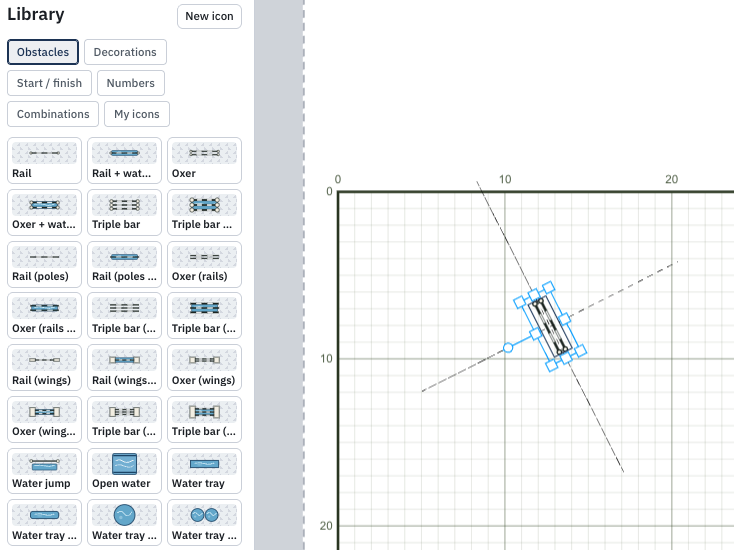
Rotate the fence
Select the fence. Under Angle (°) in the right panel:
- ‹ and › rotate 90° counter-clockwise and clockwise.
- Click the field and use the up/down arrows for 1° at a time.
- Alt/Option together with the arrow keys also rotates the fence.
The info button next to Angle (°) lists the shortcuts.
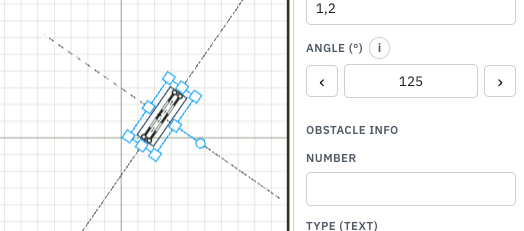
You can also click and drag the angle handle on the selected fence on the canvas.
Show distance to other fences
- Open Display in the toolbar.
- Check Show distances between obstacles.
The distance in metres is shown between fences with consecutive numbers, when they sit in line with the jump direction. A turn of more than about 30° is not treated as that kind of distance.
Distance is also shown for fences placed together as a combination.
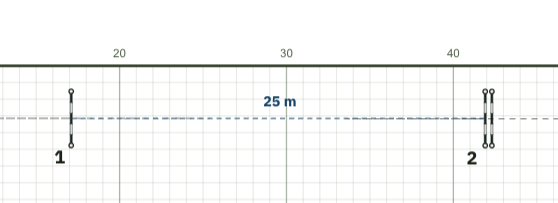
The distance line is an aid on the canvas. It is included in export and print only when the view (or the preset you choose) has Show distances between obstacles checked. See Display and export.
Fence properties
When a fence is selected you can set properties for that fence in the right panel, such as width and length, number, whether it can be jumped both ways, flagged off, and so on. You can also control the appearance, such as the colours of the poles and standards. You can add extra information that is only used internally, for example materials and exact measurements.